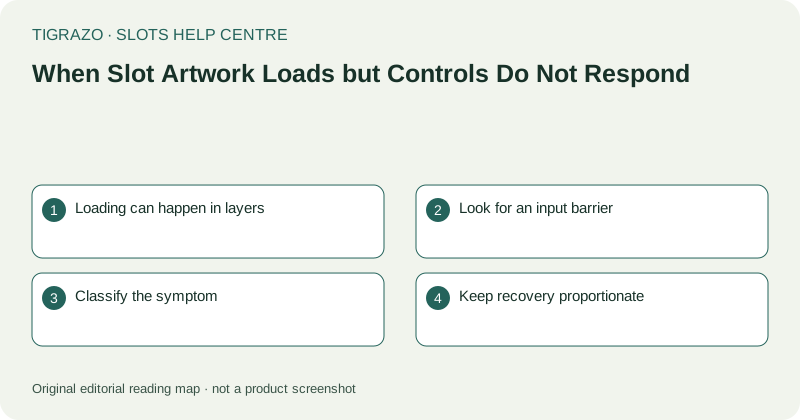
Loading can happen in layers
Background art, symbols, labels and interactive controls may appear at different times. A complete-looking scene can therefore still be restoring a session. Look for an explicit loading or connection indicator rather than assuming the page is ready because its main picture is visible.
Do not press the same button several times while waiting. Delayed input can be difficult to distinguish from ignored input, and the next visible response may not explain how many actions were received.
Look for an input barrier
A notice, information panel or confirmation overlay may intercept touches even if it is partly off-screen. Browser zoom and a narrow viewport can hide its close control. Inspect the whole visible area before concluding that every game control has failed.
Also check whether the browser itself responds to ordinary navigation controls. If the entire device is unresponsive, the symptom is broader than the game. Avoid testing the distinction by pressing a paid-action control.
Classify the symptom
The following distinctions help create a useful report without pretending to diagnose the underlying software.
| Observation | Low-risk next step |
|---|---|
| Only game controls appear inactive | Inspect game notices and overlays |
| Whole page appears frozen | Note browser and device behaviour |
| A round may be active | Stop input and verify recorded history |
| A timeout message is visible | Read its normal recovery instruction |
These are decision points, not proofs of cause. A symptom can have several explanations.
Keep recovery proportionate
If no round is unresolved, a normal exit and reopening may be appropriate under the service's guidance. Record the symptom first and avoid opening several parallel tabs. If a round is uncertain, preserve the time and visible details instead.
Do not lower security settings, install extensions or clear all browser data merely because an action button is unresponsive. Those changes can complicate the original problem while removing useful context.
Describe what happened, not what you suspect
Tell support which control appeared inactive, whether other controls responded and what message was visible. Explain whether the symptom began on first load, after opening information or after an action. Include device and browser versions if readily available.
Use recorded round information to resolve financial status. A button that looks disabled does not prove a transaction failed, and artwork that continues moving does not prove the session is healthy. Stop until the state is clear rather than generating more uncertain inputs.
If the controls remain unreliable, leaving the page is preferable to repeated experiments. A support report can be prepared without generating another uncertain transaction.